Best Image Extender

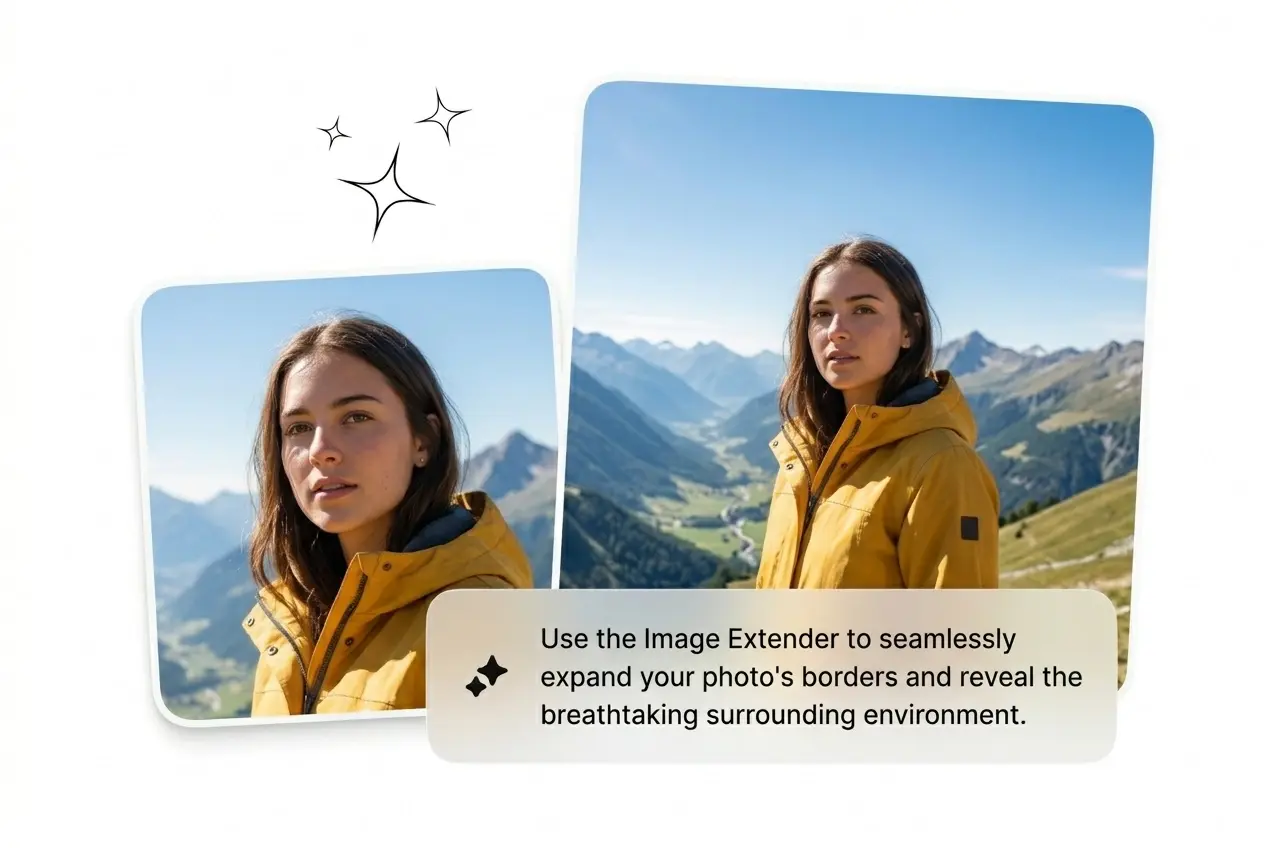
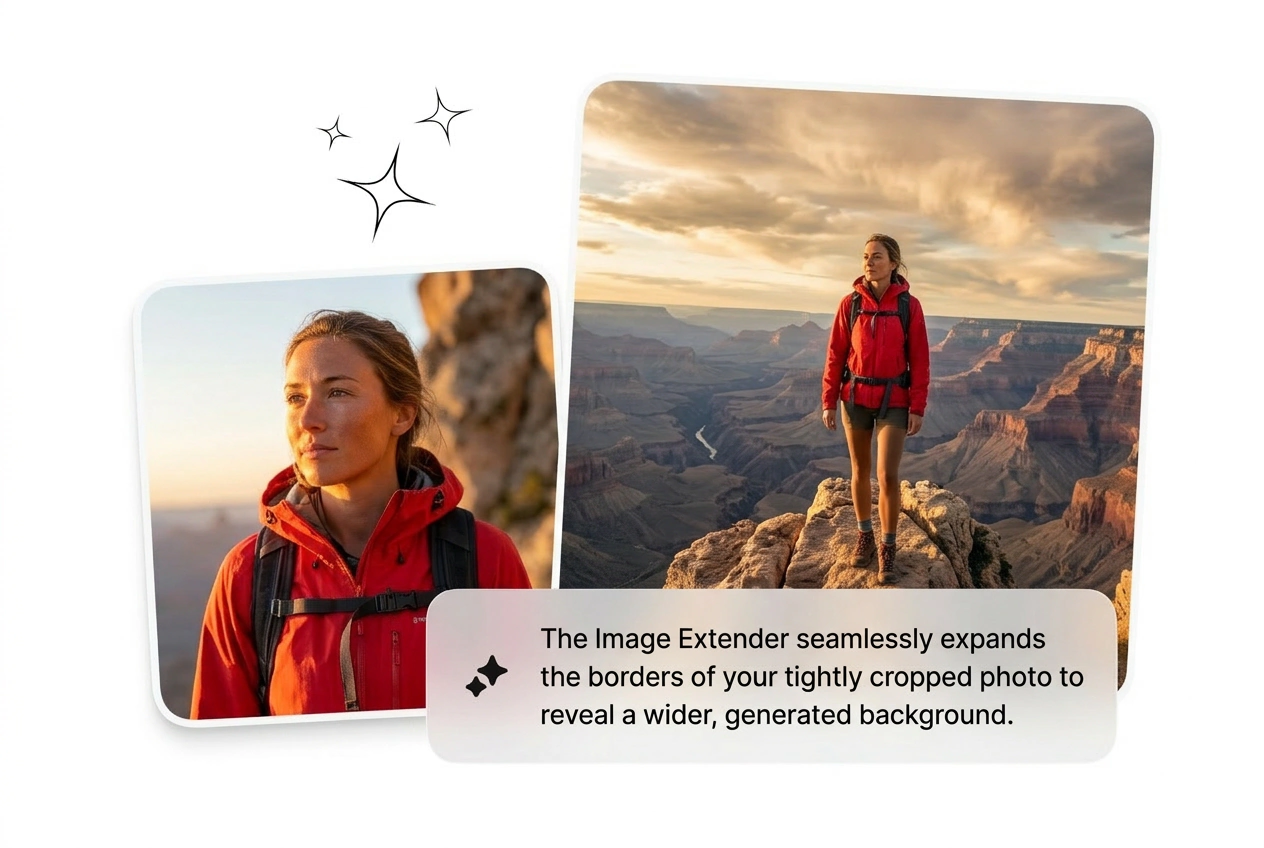
Upload a reference image, set the target ratio, and the Image Extender fills the canvas edge with matched pixels. Outputs are static exports, so sharp source images get the cleanest fills. Image Extender workflows stay fast.

Banner preview

Best Free Extend Image with No Watermark

AI image extender that reads your edges and generates matching pixels outward. Pick a ratio, ship the batch, reroll what looks wrong.

Who Needs an Image Extender

Running tight deadlines with wrong ratio assets. Three distinct workflows, one tool. Batch the variants, cut the ones that break.

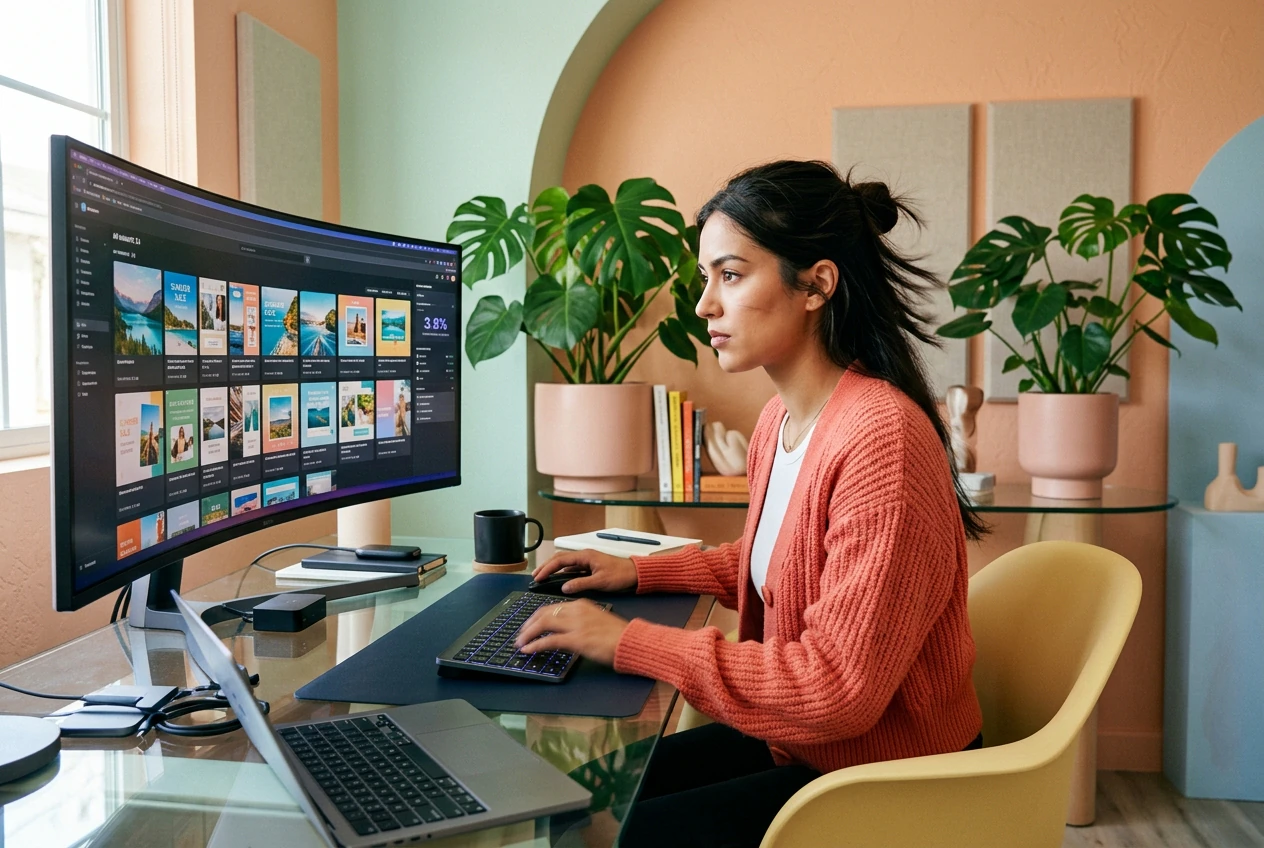
Marketer using Image Extender for ad variants

Performance Marketers

Running 20 ad variants this week and half the source images are portrait when the banner slot needs landscape. The ai expand image workflow batches all the ratio flips at once. Kill the warped ones, scale the clean ones, move to the next brief before lunch.
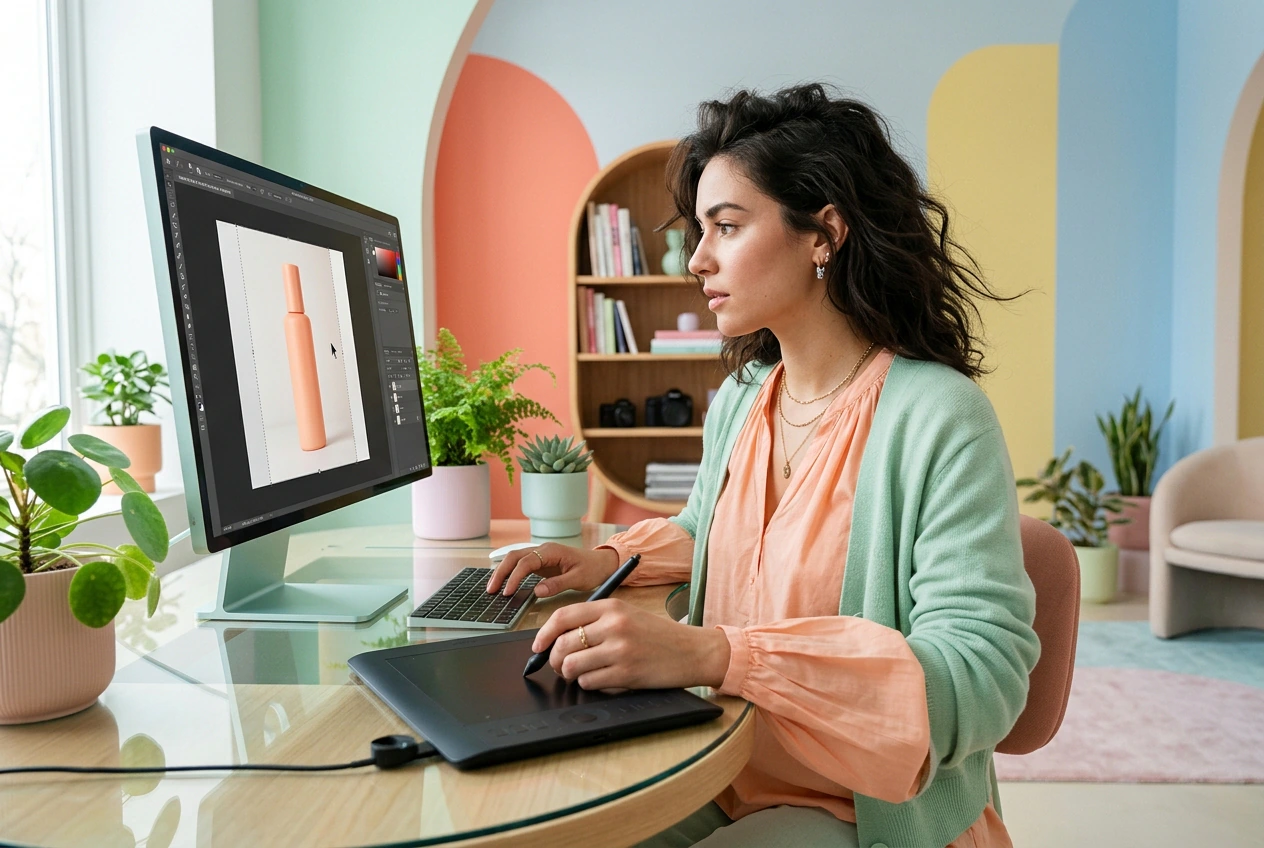
E-commerce seller using Image Extender for products

E-Commerce Shooters

Product photos come back cropped tight with zero buffer for price tags or copy overlays. Use the ai photo expander to push the background outward in all directions. End up with clean negative space that fits every platform template without a reshoot.

Photographer using Image Extender for multi-ratio delivery

Freelance Photographers

Client ordered a square shoot, now wants a 16:9 hero banner and a vertical Pinterest cut from the same file. Run the ai uncrop image tool, set three ratios, export all three. Done before the client sends the follow-up asking for an ETA.

How the Image Extender Works

Three steps. No manual cloning, no liquify disasters. Upload, set the canvas, let the ai expand fill the rest and export.

Step 1

Upload Reference

Drop the source image into the Image Extender. The model reads edge lighting, texture continuity, and perspective before generating a single pixel. Sharp, well-lit source files give the cleanest outward fill results every time.

Step 2

Set Target Ratio

Choose a preset ratio like 16:9 or 9:16, or dial in a custom canvas size for banners, posters, or platform-specific crops. The ai expand image logic calculates which edges need extension and in which direction based on your selection.

Step 3

Export the Result

Static image output lands fast. Reroll any edge that looks rough, batch multiple ratios from the same source file, and export the clean ones. No seam fixing in Photoshop, no manual patch work, no extra round-trip to the retoucher.

Image Extender Features That Ship

Four things the ai image extender actually does. No fantasy specs. Iteration speed and output quality, grounded in what the tool delivers.

Edge-Matched Fill

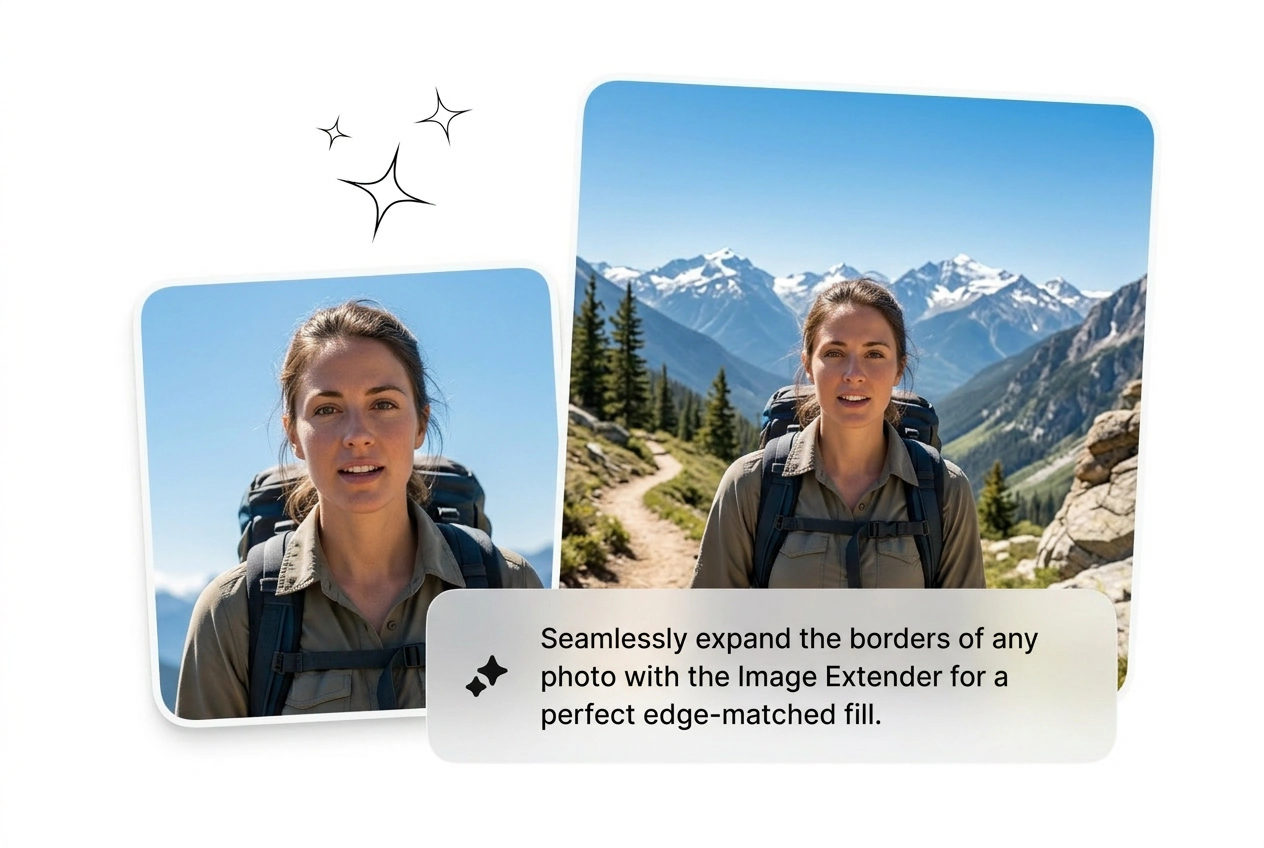
Generates new pixels outside the original border by reading lighting, color, and perspective from the source image edge. Use it when a tight crop needs breathing room for a headline or a safe zone. Output matches the original well enough to ship without manual patching.

Image Extender edge fill matching texture example

Multi-Ratio Batch

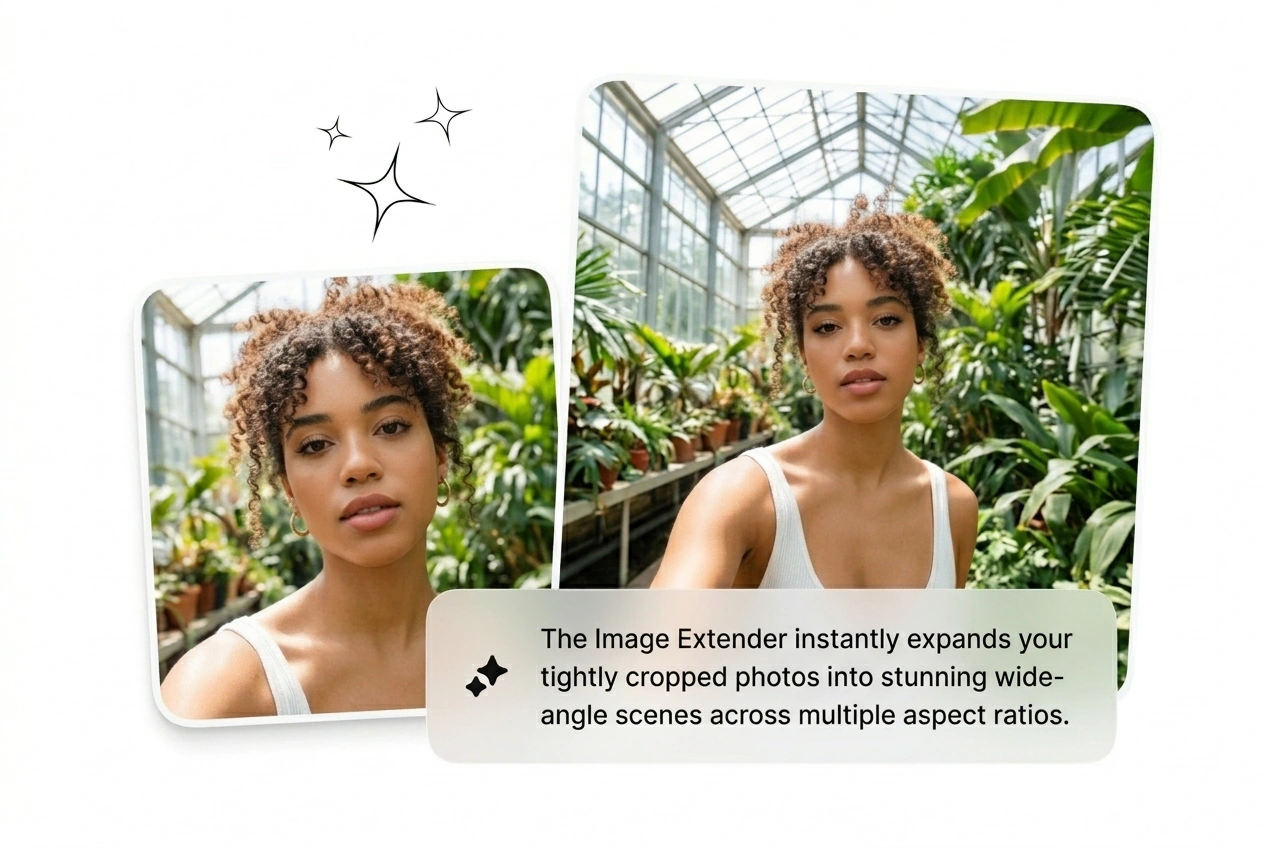
Expand photo to several target ratios in one session instead of running each separately. Useful when a client needs Instagram square, TikTok vertical, and a landscape banner from a single product shot. Cut the versions that break, keep the ones that land.

Image Extender batch multi-ratio output grid

Subject Stays Put

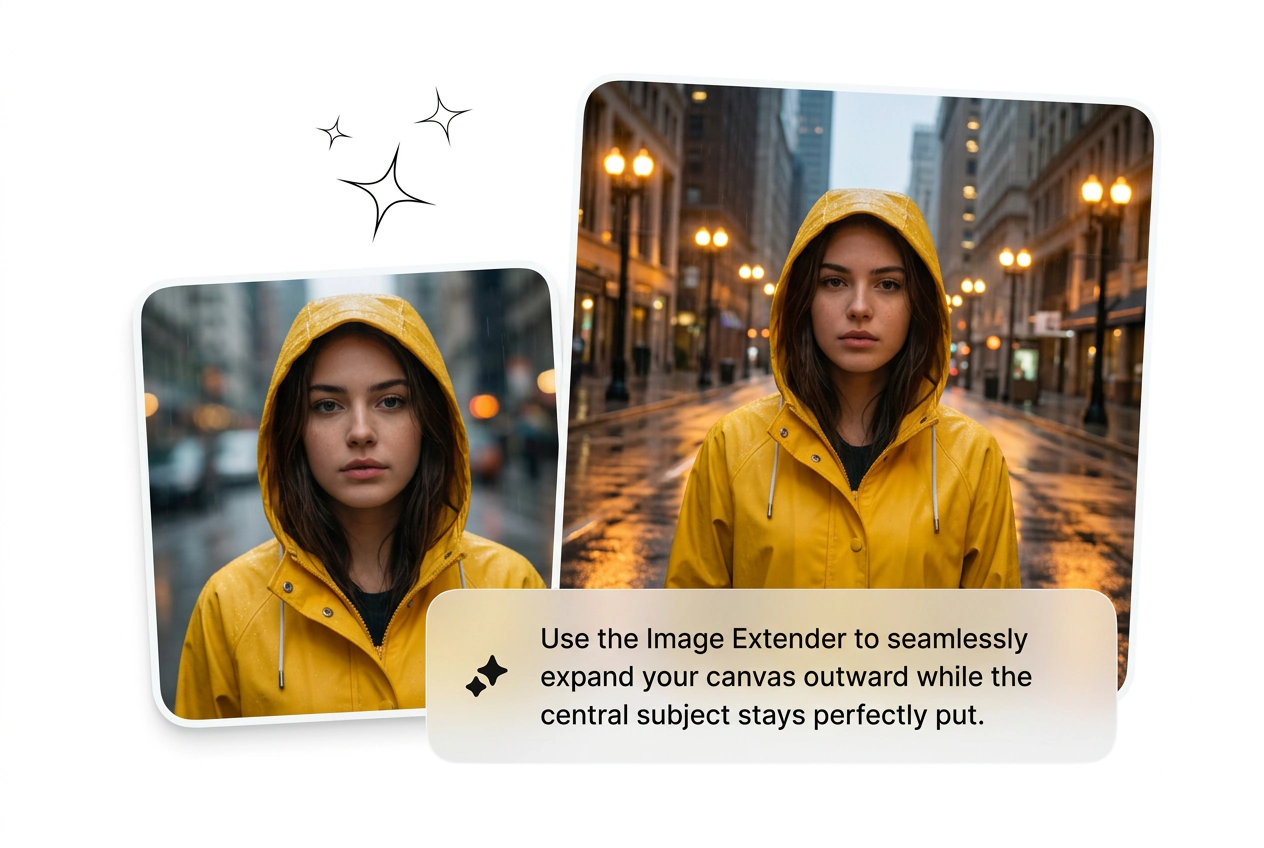
The main subject holds position while the background extends outward. Avoids the drift and distortion you get with basic canvas scaling or content-aware stretch. Reliable enough for e-commerce listings and album cover safe zones where subject placement is fixed.

Image Extender subject lock stable background expand

Seam-Free Background

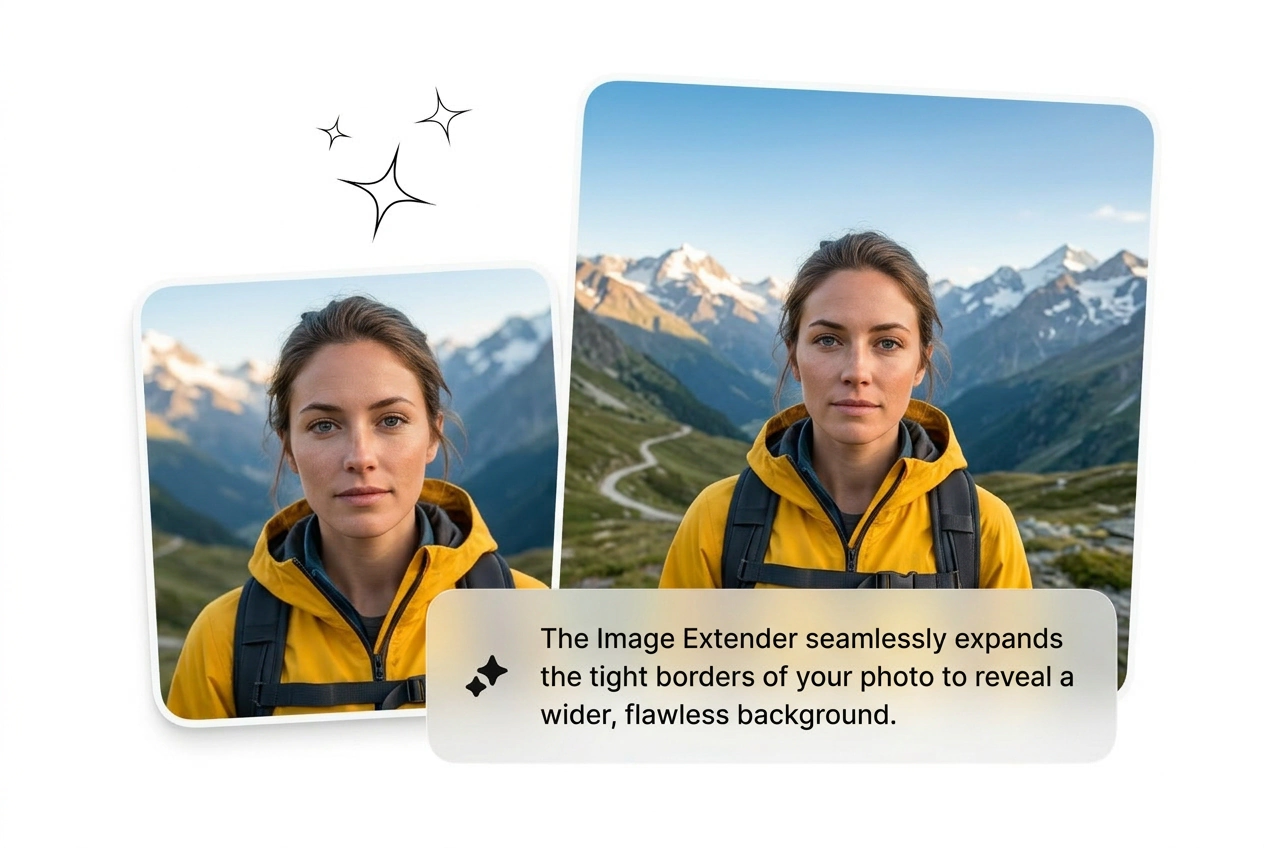
Expand photo background without the hard tile lines that come from copy-paste cloning. The ai art image expander free-style fill blends texture and tone across the extended zone. Works best on images with consistent ambient light and non-repeating background patterns.

Image Extender seamless background expansion result

Image Extender FAQ

Yes, there is a free tier that covers standard resolution exports and basic ratio presets. Limits apply to batch size and maximum output dimensions at the free level. It is a solid way to test whether the fill quality meets your production bar before committing. Image Extender handles this reliably.

Extend Your Image Now

Drop the source, set the ratio, let the ai expand fill the edges. Reroll the rough ones. Cut what doesn't fit. Done. Image Extender output ships fast.

Try Free